Sequencer Pages
Sequencer pages are the editing views for tracks stored in the grid. They share track selection, live recording, copy/paste and the Track Menu.
Open the main sequencer pages from Page Select with [Bank Group].
| Page | Use |
|---|---|
| Step Editor | Primary step tracks: Machinedrum, TBD or other step-capable primary devices. |
| LFO Page | Per-track LFO settings. |
| PianoRoll Editor | External MIDI-style note and automation tracks. |
| Chromatic Page | Live pitch input, note recording and arpeggiator control. |
Open Arpeggiator and Polyphony from the Track Menu where those entries are listed.
Track Selection
Hold [Global] to open the Track Menu, then use TRACK SEL to choose the current track.
Other selection shortcuts:
| Context | Shortcut |
|---|---|
| Step Editor with Machinedrum | The current MCL track follows the selected Machinedrum track when track-follow is enabled. |
| Step Editor menu open | Press a trig key to select the matching primary track. |
| Chromatic or PianoRoll | Incoming MIDI can select the first external track using the same configured channel. |
| Chromatic or PianoRoll menu open | Press [Trig 1-6] to select an external MIDI track. |
When Grid X and Grid Y point at different devices, the sequencer pages track whether the current target is the primary or secondary device.
Live Record
Start live recording with:
[Rec] + [Play]Depending on the active page, live record can capture:
- step trigs
- notes played in Chromatic or PianoRoll
- parameter changes and MIDI automation
- pitch bend and pressure data on external MIDI-style tracks
- mute-record behavior where supported by the current track engine
Press [Rec] again to leave live record and return to editing.
Track Expansion
When a track length is extended and the new area is empty, MCL can repeat the existing sequence into the added space. This keeps a short pattern musical when expanding from, for example, 16 to 32 or 64 steps.
Track Menu
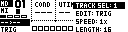
Hold [Global] from a sequencer page to open the Track Menu. Release [Global] to apply the selected menu entry.
The exact entries depend on the page and track type.
| Entry | Function |
|---|---|
TRACK SEL |
Select the active track. |
DEVICE |
Select primary or secondary sequencer device where both are available. |
EDIT |
Select the page's edit mode or mask. |
SPEED |
Set track speed: 1x, 2x, 3/2x, 3/4x, 1/2x, 1/4x, 1/8x. |
LENGTH |
Set track length. Primary step tracks use up to 64 steps; external MIDI-style tracks use up to 128 steps. |
SWING |
Set per-track swing percentage for step tracks. Hold [Yes/Load] while applying to update all compatible tracks. |
COPY |
Copy the current track or all compatible tracks. |
CLEAR |
Clear the current track or all compatible tracks. |
PASTE |
Paste copied track data. |
SHIFT |
Shift the current track left/right, or shift all compatible tracks. |
REVERSE |
Reverse the current track or all compatible tracks. |
TRAN |
Transpose the current track or all compatible tracks. |
QUANT |
Toggle live record and arpeggiator quantization. |
Step-Track Menu Entries
Step-capable primary tracks add these entries:
| Entry | Function |
|---|---|
EDIT |
Select TRIG, MUTE, SWING or SLIDE mask. |
SOUND |
Open the sound browser where the active device supports kit/sound storage. |
External MIDI Menu Entries
PianoRoll and external MIDI-style tracks add note and automation entries.
| Entry | Function |
|---|---|
CHANNEL |
Set the MIDI channel for the current track. When Machinedrum is the primary device, values after 16 route to MD1-MD16 polyphonic voice targets. |
VEL |
Set default note velocity. |
COND |
Set default trig/note condition. |
CC / parameter select |
Choose the active automation lane. |
SLIDE |
Enable glide between automation values where supported. |
CC REC |
Enable recording of incoming control changes into automation lanes. |
Automation lanes can target CC, NRPN, RPN, pitch bend, channel pressure, poly pressure and program change where supported by the track type. On an MD1-MD16 route target, the automation lane selects Machinedrum track parameters instead of generic MIDI CC destinations.
Copy, Clear And Paste Scopes
Sequencer pages use three common scopes:
| Scope | How it is used |
|---|---|
| Step/event | Hold or select a step/event, then use [Copy], [Clear] or [Paste]. |
| Page | Hold [Scale] with [Copy], [Clear] or [Paste] to act on the visible page. |
| Track/all | Use Track Menu COPY, CLEAR and PASTE entries for track-level operations. |
Copy/paste carries the data that belongs to the edited page: step data on Step Editor, notes on PianoRoll note mode, and lock/automation data on automation pages.