Performance Page
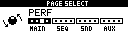
The Performance Page defines four performance controllers, named A through D. Each controller morphs between two scenes from a shared pool of eight scenes.
Open it with:
[Bank Group] + [Trig 3]
The same four controllers are also available from the Mixer Page when the selected mixer target supports performance control.
Controller Function
A performance controller is a macro. Turning it sends a smooth value from 0 to 127 and morphs every parameter lock in its assigned left and right scenes.
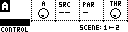
For example, controller A can fade from Scene 1 to Scene 2. Scene 1 might store closed filters and low delay send; Scene 2 might store open filters and higher delay send. Turning controller A then moves all of those locked parameters together.
| Control | Action |
|---|---|
Encoder 1 |
Set the active controller value. |
[Function] + Encoder 1 |
Jump the active controller to the far left or far right. |
Encoder 2 |
Choose the external control source. |
Encoder 3 |
Choose the source parameter. |
Encoder 4 |
Set the external-control threshold. |
| [Load/Yes] / panel button 4 | Cycle through controller setup and scene-lock subpages. |
| Hold [Global] | Open the controller menu. |
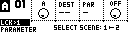
The active controller is shown as A, B, C or D. Hold [Global] and press [Trig 1] through [Trig 4] to choose the active controller. The controller menu also supports renaming the selected controller.
External Control And Learn
Performance controllers can be moved from external input. The source and parameter fields select which incoming device parameter or MIDI CC controls the active performance controller. The threshold field ignores incoming values below the chosen threshold.
To learn a source, set the source to -- and the parameter to LER, then move the external control to assign. MCL assigns the source and parameter automatically when it receives a matching change.
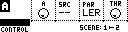
Performance targets follow the current device setup, so learning and target selection work with primary and secondary devices, shared logical slots, and LFO destinations.
Scenes
The Performance Page has eight scenes, selected with [Trig 1] through [Trig 8]. A scene stores up to 16 parameter locks.
Scene locks can target device parameters, Machinedrum track and FX parameters, external MIDI parameters, TBD parameters, and LFO parameters exposed as performance targets.
Each controller has two scene assignments:
| Control | Action |
|---|---|
| Hold a scene [Trig] | Enter scene-lock editing for that scene. |
| Hold [Left], then press a scene [Trig] | Assign or unassign that scene as the active controller's left scene. |
| Hold [Right], then press a scene [Trig] | Assign or unassign that scene as the active controller's right scene. |
| Hold a scene [Trig], then press [Yes] | Preview the scene by sending its locks. |
| Hold a scene [Trig], then press [Copy] | Copy the scene. |
| Hold a scene [Trig], then press [Paste] | Paste the copied scene. |
| Hold a scene [Trig], then press [Clear] | Clear the scene. Press [Clear] again on the same scene to undo the clear. |
Scene Lock Editing
Hold a scene [Trig] and move a parameter on the target device to add it as a lock in that scene. MCL opens a parameter editor for the active target where supported, so the target hardware can be used for direct lock entry.
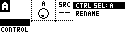
While a scene is held:
| Control | Action |
|---|---|
| [Up] / [Down] | Move through the scene's lock slots. |
Encoder 2 |
Choose lock destination. |
Encoder 3 |
Choose lock parameter. |
Encoder 4 |
Edit the lock value. |
| Encoder button for a hardware parameter | Add or clear that parameter lock when the active editor exposes parameter keys. |
On MegaCommand/MegaCMD with Machinedrum, the direct parameter editor covers the 24 legacy Machinedrum parameters. TBD parameter targets come from the selected TBD sound.
LFO Modulation
LFOs can target PF1 through PF4, which correspond to performance controllers A through D. The LFO modulation is added on top of the controller's manual encoder value and then clamped to the 0-127 controller range.
Performance controllers can also target LFO parameters when those parameters appear in the performance target list. This allows macro controls to reshape LFO depth, speed, mode or destination-related parameters during a performance.
PF Slot Storage
Save or load the PF slot on Grid Y to store or recall:
- the four performance controllers
- controller names and external-control mappings
- the shared pool of eight scenes
- all scene locks
- Mixer Page performance states
- performance-state mute masks, fill masks, controller locks, device load flags and autoload selection
Use the performance group on the Save or Load page when the PF slot should be included with a wider project save/load operation.