TBD-16 Hardware Platform
The TBD-16 is a hardware platform that can run MCL. It supports all of MCL's external MIDI devices, such as the Machinedrum, but also has an INT mode for controlling the internal TBD sound engine.
Device Setup
Open the device menu from:
CONFIG > MIDI > DEVICESOn TBD-16, MCL adds the TBD device and the INT port to the normal grid setup:
| Setting | Use |
|---|---|
Grid X = TBD, port INT |
Use the internal TBD sound engine as the primary step-sequenced device. |
Grid Y = TBD, port INT |
Use the internal TBD sound engine as the secondary MIDI-style device. |
Grid X = MD, port MIDI 1 |
Use a connected Machinedrum as the primary device. |
Grid Y = GENER or ELEKT |
Use generic MIDI, Monomachine or Analog Four style secondary tracks. |
The selected grid device determines the track types that are created in new projects and the editor pages used for those tracks.
Grid Tracks
Grid X = TBD gives you 16 internal TBD step tracks in slots 1-16. These use the Step Editor, Mixer, Chromatic Page, Arpeggiator Page and LFO Page.
Grid Y = TBD gives you six TBD tracks for PianoRoll sequencing and automation.
Internal TBD grid slots can store:
| Data | Meaning |
|---|---|
| Sequence data | Trigs, notes, lengths, loop settings, mutes, conditions and timing. |
| Sound state | The current TBD sound metadata and parameter values for the track. |
| Mixer state | Visible mixer parameters exposed by the current TBD sound. |
| Parameter locks | Step locks for visible TBD audio and mixer parameters, plus note locks for sounds that use per-step pitch. |
Device UI, Presets And Parameter Strip
The TBD UI is split into matching Device 1 and Device 2 views. The top-left button opens the UI for controlling Device 1; the top-right button opens the UI for controlling Device 2. Each view can show parameter pages, the preset browser, or the bottom four-encoder strip.
When one device UI is open, press the other device UI button to switch to it. Tap the active device UI button again to leave the UI. The Device 1 or Device 2 button LED shows which UI is active.
Hold the device UI button and press [A] to switch that UI between the full-screen view and the bottom strip. MCL remembers the selected size the next time that device UI is opened.
The four encoders edit the visible parameters for the active track. In the full-screen view, arrow keys move between parameter pages and the preset browser. The trig LEDs show the available parameter pages, and pressing a trig selects a page. In the bottom strip, hold the device UI button to show the same page LEDs and select pages from the trigs.
The preset browser uses Encoder 1 for the machine/preset group and Encoder 2 for the preset. Press Encoder 2 to load the selected preset. NO TRACK means the selected sequencer track has no TBD sound; NO PRESETS means no preset list is available.
Panel Controls
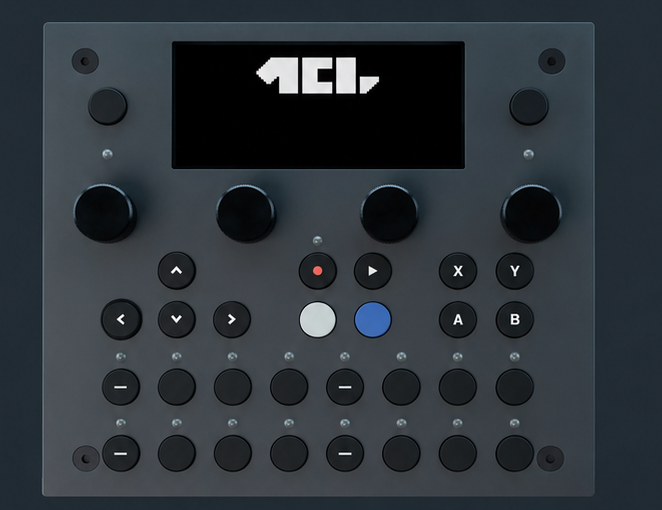
TBD-16 panel input is mapped into MCL's page and device model.
| Control | Action |
|---|---|
| Top-left button | Open or control the Device 1 UI. |
| Top-left button in menus and browsers | Back/up. |
| Top-right button | Open or control the Device 2 UI when a second UI-capable device is configured. |
| Top-right button in local menus | Confirm/enter. |
| Top-left + top-right | Open the System menu. |
| Device UI button + A | Switch the active device UI between full-screen and bottom-strip size. |
| Encoder 1 tap | Open Page Select. Tap Encoder 1 again from Page Select to open the selected page. |
| Encoder 2 tap | Open or close the Grid bank popup. |
| Arrow keys | Navigate pages, menus, steps and selected values. |
| Transport keys | Act as Record, Play and Stop. In copy mode they act as Copy, Clear and Paste. |
| Trig pads | Select rows, trigger tracks, edit steps, play notes or select TBD UI tracks depending on the active page. |
| A button | Acts as Scale/page toggle on Grid, Mixer, Save/Load selection views and sequencer pages. In Track Select it toggles the selected device. Otherwise it acts as the legacy menu modifier. |
| B button | Opens legacy MCL page menus on Grid, Mixer, Save/Load selection views and sequencer pages; otherwise it acts as Function. |
| X button | Acts as Yes, Load or confirm. |
| Y button | Acts as No, Save or cancel. |
If an expanded device UI is active, TBD device controls get first chance to handle the buttons. If the device UI is collapsed, the active MCL page handles the same buttons.
Track Select
On the Grid Page, Step Editor or Mixer Page, hold [Function] to open Track Select. The top half of the screen shows the active device and track number, and the trig LEDs show the selected track.
While holding [Function], press [A] to switch the selected device, or press a trig pad to select that track. Turn Encoder 1, or press [Left] / [Up] and [Right] / [Down], to move through tracks. Release [Function] to close Track Select and return to the previous page.
If a TBD device UI is open for the selected device, Track Select follows that UI and changes its focused TBD track.
Grid Page Differences
On TBD-16, Save and Load keep the Grid Page visible instead of opening separate full-screen pages.
| Action | Result |
|---|---|
| Open Save | Select the current Grid Page slots and save them without leaving the grid. |
| Open Load | Select the current Grid Page slots and load them without leaving the grid. |
| Slot Menu arrows | Move through Slot Menu entries first. Use the normal modifier behavior when adjusting selection geometry. |
| Grid Select | Press [A] to switch grid selection. The change is applied when [A] is released, so [A] can also be used as a chord modifier. |
| Bank popup | Tap Encoder 2 to open or close the bank popup. Turn Encoder 1 or Encoder 2 to scroll banks while the popup is open. |
The visible grid still follows the same row, slot, bank, chain and queue concepts described in the Grid sections.
Clock And Tempo
TBD-16 can use the internal clock source in addition to clock from MIDI 1, MIDI 2 or USB.
Configure clock and transport from:
CONFIG > MIDI > SYNCThe TBD sync menu uses CLOCK SRC and TRANS SRC. Available source values are:
| Source | Meaning |
|---|---|
1 |
MIDI 1. |
2 |
MIDI 2. |
USB |
USB MIDI. |
INT |
Internal TBD/MCL clock. |
The tempo window edits the internal tempo when MCL is using its own clock source. If MCL is following an external clock, the window shows the current clock source but tempo changes and tap tempo are ignored.
From the Grid Page, hold [A] and press [Function] to open the tempo window. Turn Encoder 1 to adjust tempo in 1 BPM steps, or press [Up] / [Down] for 0.1 BPM changes. Hold [Function] and tap [A] or [B] to enter tap-tempo mode; after four taps MCL applies the averaged tempo. [Y] closes the window. The window shows the current tempo and clock source label: INT, EXT1, EXT2 or USB.